Permissions and roles
The three roles, and inviting and removing members
Updated 2026.08.24
This page covers the permission levels you can give workspace members, and how to manage members.
Only admins can manage members.
The three roles
| Role | What it can do |
|---|---|
| Admin | Everything: invite and remove members, assign plans, permanently delete |
| Member | View and edit records, meetings, and email |
| Viewer | View only. No editing |
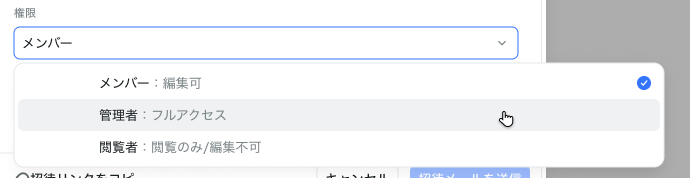
These three are what you can choose when inviting. If in doubt, pick Member and change it later.
Admin-only operations are member management, plan changes, and permanent deletion of data. Avoid having a single admin — we recommend making more than one person an admin.
Invite members
- Open Settings → Team members.
- Click Invite members at the top right.
- Enter the invitees' email addresses. You can enter several at once.
- Choose a permission level and an assigned plan.
- Send the invitation email, or copy the invite link and share it.
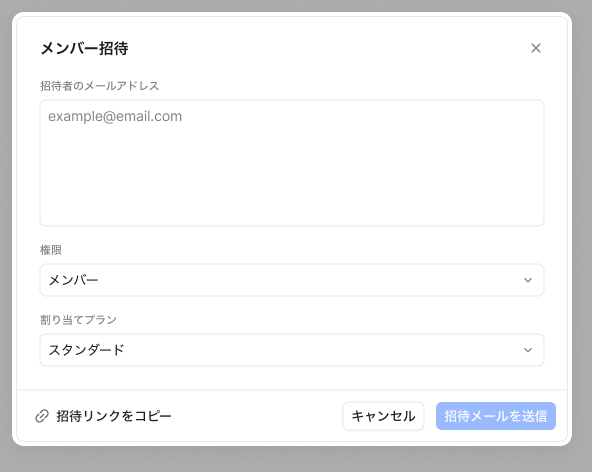
The permission selector explains what each role can do.
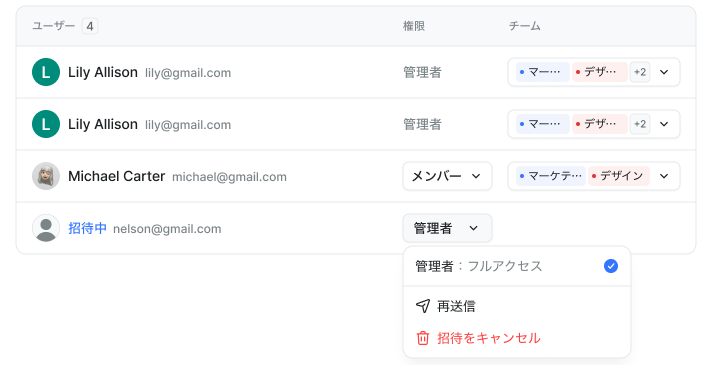
Invitations expire after 24 hours
Invite links and emails stop working 24 hours after they are issued. If someone couldn't join in time, use Resend from the list.
Pending members appear as "Invited" in the list. From the row's permission selector you can Resend and Cancel the invitation. You can change the permission even before they join.
What the invitee sees
Opening the invite link shows who invited them, the workspace name, and the permission and plan they will get.
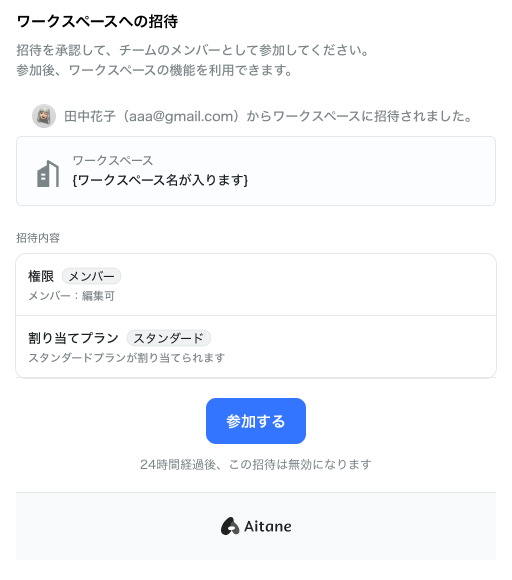
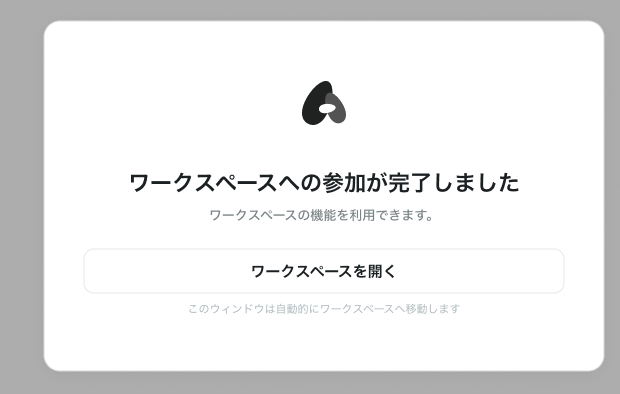
Clicking Join completes the process and takes them straight into the workspace.
Remove members
Select the member in the list and remove them. A confirmation dialog appears.
Plans are assigned per member
Aitane plans are assigned per member, not per workspace. Not everyone has to be on the same plan.
See Plans and billing.