Create a workspace and invite people
Creating a workspace, inviting members, and switching between workspaces
Updated 2026.08.14
This page covers creating a workspace and inviting members.
Meetings, records, and email are all shared within the workspace you belong to.
Create a workspace
- Sign in with a Google or Microsoft account.
- On first sign-in, enter a workspace name and URL to create it.
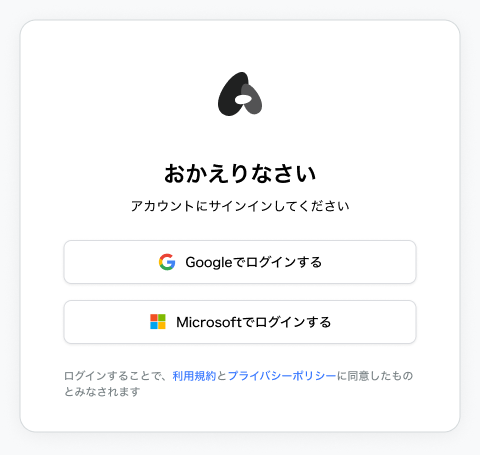
Signing in requires a Google account on your organization's domain. (`@gmail.com` addresses cannot be used.)
Invite members
- Open Settings → Team members.
- Enter email addresses under Invite members.
- Choose a permission level and an assigned plan.
- Send the invitation email, or copy the invite link and share it.
Invited members show as "Invited" until they join. You can also resend or cancel invitations.
Only admins can manage members. See Permissions and roles for the role types.
Working across multiple workspaces
If you belong to more than one workspace, switch from the top of the screen.
For operations that target a specific workspace — such as LINE integration — a picker appears asking which workspace to link.
Next step
Each member's email and calendar are connected automatically the moment they sign in. No setup needed.