Script and minutes
Generating the script (transcript) and its language setting, plus the 7-section minutes and editing
Updated 2026.08.25
This page covers how transcripts and summaries are produced from a recording, and how to edit them.
Meeting capture happens in three stages: recording → transcript → summary (minutes). Each stage builds on the previous one.
Recording, scripts, and minutes are available on every plan. The only thing your plan changes is how long recording data is kept (Free 30 days / Standard 180 days / Business 365 days).
The three tabs
The meeting detail screen has three tabs: Minutes / Script / Speakers. Export and Regenerate on the right work from any tab.
| Tab | Contents |
|---|---|
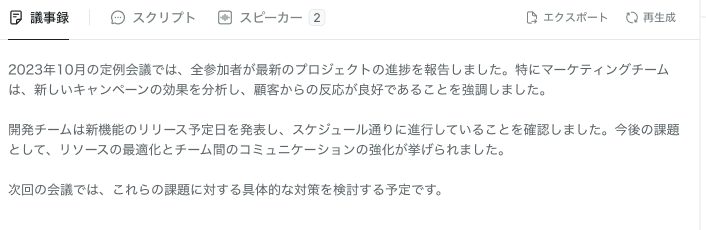
| Minutes | The AI-written summary |
| Script | The raw transcript, utterance by utterance |
| Speakers | Who spoke, and how much |
Script (transcript)
The Script tab lists every utterance with its speaker and timestamp.
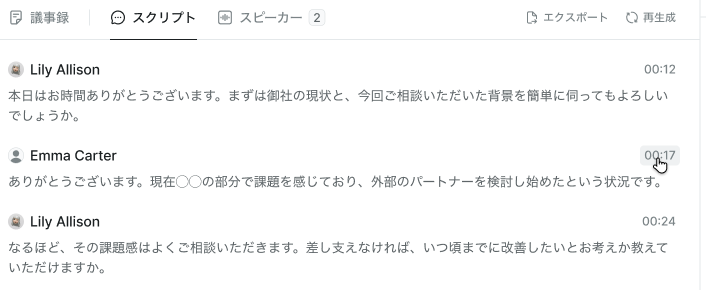
When you need to settle "who said what", look here rather than at the summary.
- If it hasn't been generated yet, you can create it
- To bring it up to date, run Regenerate
- Export saves it as text
Speakers (talk-time ratio)
The Speakers tab shows each participant's share of the conversation as a bar.
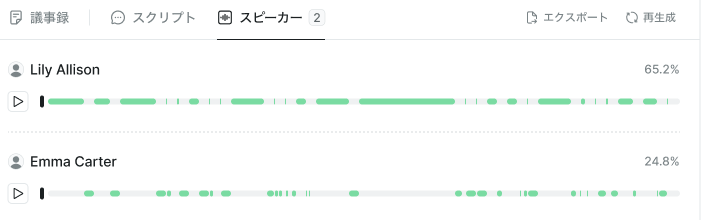
In sales calls, how much the other side got to talk can correlate with outcomes. You don't need to chase the number itself, but it's useful material for review.
Regenerate in a specific language
The transcript language is auto-detected, but you can specify it when detection goes wrong.
Choose from Japanese, English (US), Korean, Chinese (Simplified/Traditional), Spanish, French, or German, then run Apply and regenerate. The detected language is shown on screen.
If accuracy drops in meetings mixing several languages, specify the one that was mainly spoken.
Summary (minutes)
The AI builds a summary from the transcript, structured into these seven sections.
| Section | Contents |
|---|---|
| Meeting overview | The big picture |
| Agenda details | What was discussed |
| Key points | What to keep in mind |
| Decisions | What was decided |
| Action items | What to do |
| Next steps | How things proceed from here |
| Insights | Observations |
If it hasn't been generated yet, run Generate summary; to redo it, run Regenerate. When regenerating you can attach instructions and have it summarized from a different angle.
Edit the minutes
The summary can be edited directly as your minutes. What you type is saved automatically.
If another update happens while you're editing, you'll see "There was another update while editing" — and what you typed is kept. Drafts are never lost.
AI summaries can contain mistakes. Always have a person check decisions and requests before sending anything out.
Export
Use Export to save the summary. For emailing minutes to external parties, see Receive the minutes email.
When generation fails
| Message | What to do |
|---|---|
| Failed to generate the summary | Wait a while and run it again |
| Generation is taking a while | Wait a bit and refresh the page |
| Usage limit reached | The AI summary service's limit. Check with an admin |