Connect your accounts
How email and calendar sync happens at sign-in, and how to check connection status
Updated 2026.08.24
This page explains how email and calendar sync works and how to check your connection status.
Email and calendar connect automatically
The email and calendar of the account you sign in with are connected automatically at that moment. There is nothing to set up.
| Account you signed in with | What gets connected |
|---|---|
| Gmail and Google Calendar | |
| Microsoft | Outlook mail and calendar |
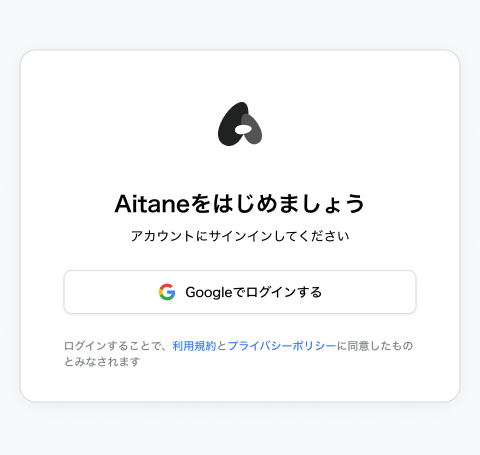
Because the connection completes when you approve permissions on the sign-in screen, you can open Meetings and Email right away and your data will be there.
Supported meeting tools are Zoom, Google Meet, and Microsoft Teams. Meet and Teams meetings come in through your calendar connection as-is.
When to connect Zoom
Zoom is the only service that is not connected automatically. However, Zoom meetings you host come in through your calendar, so in most cases you can skip it.
If people outside your company often send you Zoom links, connect Zoom from Settings → Mail & Calendar and those meetings will be picked up too.
See Zoom integration for details.
Adding another account
You can also connect email and calendar accounts other than the one you signed in with.
- Open Settings → Mail & Calendar (Settings is at the bottom of the left navigation).
- Choose a service from Add account.
- Pick the account on the authentication screen and approve the permissions.
Connections are per user. On a team, each member simply signs in and their own account is connected at that moment.
Checking status and reconnecting
Connected accounts are listed in Settings → Mail & Calendar.
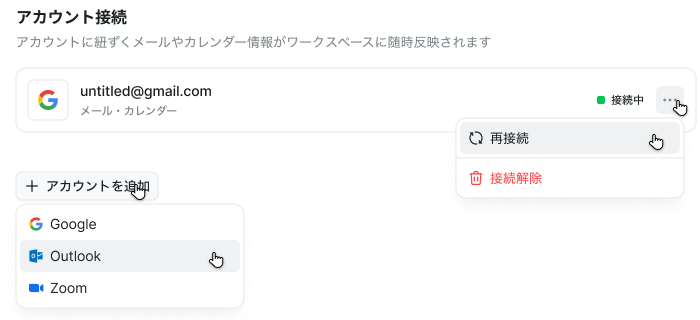
There are two states.
| Status | Meaning |
|---|---|
| Connected | Syncing normally |
| Reconnect needed | The connection dropped, e.g. permissions expired |
If you see "Reconnect needed", run Reconnect. Your settings carry over.
What happens when you disconnect
Disconnecting permanently deletes the data associated with that account.
- Emails and calendar events
- Email access permissions
A confirmation dialog appears before disconnecting. Deleted data cannot be restored. If you only want to pause syncing, check whether reconnecting solves it before you disconnect.
Note that the account you signed in with cannot be disconnected from this screen.
If data isn't coming in
- Check that upcoming meetings appear in Meetings
- Check that mail appears in Email
The first sync can take a while. If nothing shows up after waiting, confirm the status says "Connected" in Settings → Mail & Calendar.
If your organization's admin restricts external app connections, you may not be able to reach the approval screen. In that case, ask your internal administrator.