Check your notifications
Using the notification center, and which actions produce notifications
Updated 2026.08.24
This page covers reviewing what has arrived under Notifications in the left navigation. For choosing where notifications go, see Configure notifications.
Filtering and read state
Notifications switch between All / Requests / Unread. The unread count shows as a badge on "Notifications" in the left navigation, so you can see the backlog without opening it.
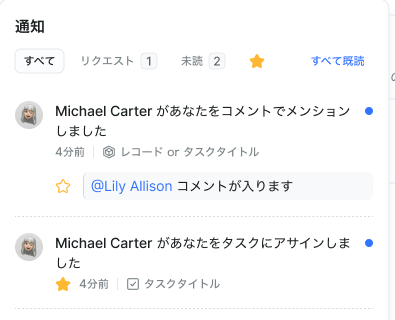
Read/unread can be flipped back manually, so things you'll "deal with later" can be returned to unread. To process in bulk, use Mark all read.
What produces a notification
| Kind | Example |
|---|---|
| Create / update / delete | A task or note was changed |
| Assignment | A task was assigned to you |
| Mention | You were mentioned in a comment |
| Completion | A task was completed |
| Comment | A comment was added |
| Status change | A deal or similar changed state |
| Meeting reminder | A meeting is about to start |
| Plan changes | A plan-change request, approval, or rejection |
Notifications cover tasks, notes, meetings, contacts, companies, and deals.
Jumping from a notification
Selecting a notification takes you to the relevant screen. If a meeting notification opens to "Meeting not found", that meeting may have been deleted.