Receive the minutes email
What's in the minutes email sent after recording, and who receives it
Updated 2026.08.13
When a meeting's recording completes, Aitane automatically sends a minutes email — so you can review the meeting's outputs from your inbox too.
What the email contains
- Meeting title, date and time, duration
- Participants
- Minutes (summary) and script (transcript)
- Talk-time ratio
- The meeting's poster image
Choosing who receives it
Set the recipients under Settings → Recording, in Minutes delivery settings. The default is "Everyone invited".
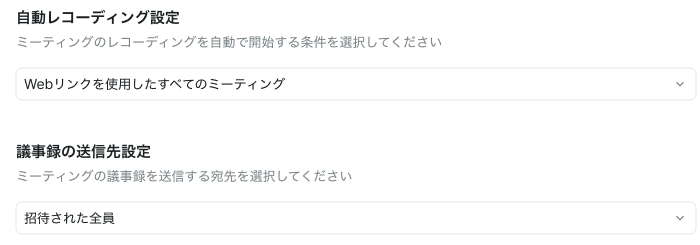
This setting is per user. It doesn't have to match across the workspace.
In meetings with external participants, the default means they get the minutes too. If you don't want that, revisit this setting or turn off recording for that meeting (see Meeting bot settings).
Checking whether it was sent
You can confirm whether the minutes email went out to someone in any of these places:
- Aitane's Email object → "Sent" tab
- The relevant company or contact detail page → "Email" view
- Your own Gmail / Outlook "Sent" folder
It does not appear in the send history on the deal or meeting screens.
The minutes email is sent from your own email address. It never comes from an Aitane address — recipients see the same sender as your usual correspondence.
That's also why it shows up in your own Gmail / Outlook "Sent" folder.
Notes
- Links inside the minutes email go to the Aitane top page.
- Delivery follows your organization's and your personal settings.