Meeting bot settings
Auto-join, manual invites, and how waiting rooms are handled
Updated 2026.08.18
This page covers the settings for having the bot join your meetings to capture recordings and transcripts.
The bot enters the meeting as a participant. The other side can see that the meeting is being recorded, so for meetings with external participants, a quick heads-up beforehand keeps things smooth.
Supported meeting tools
| Tool | How it joins |
|---|---|
| Zoom | Via calendar integration or a Zoom connection |
| Google Meet | Via calendar integration |
| Microsoft Teams | Via calendar integration |
In-person meetings and other tools cannot be recorded.
Configure auto-join
Auto-join is controlled at three levels. The more specific level wins.
| Level | Where to set it |
|---|---|
| Whole workspace | Settings → Meeting bot |
| Your own meetings | Settings → Recording |
| Per meeting | The Recording toggle at the top right of the meeting detail screen |
Under Settings → Recording, Auto-recording settings picks the condition for starting recordings automatically. The default is "All meetings with a web link", which covers every event containing a meeting URL.
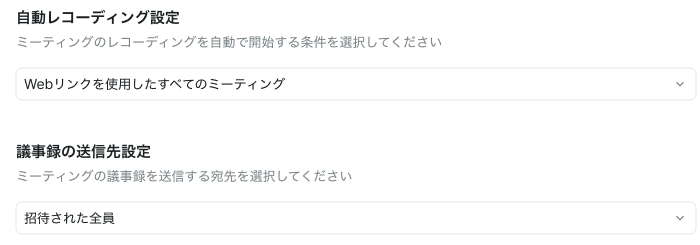
For adjustments like "on for the whole company, but skip this one meeting", use the per-meeting toggle.
Record (or skip) just one meeting
Open the meeting's detail screen and find the Recording toggle at the top right. Use it to turn recording off for just that meeting — or on.

You can also keep auto-join off and enable only the meetings you need with this toggle. It suits meetings added at the last minute, or ones you decide to record after the fact.
When someone sends you a meeting link
The bot can only join events that have a meeting URL on them. Receiving a link by email or chat for a meeting the other party hosts isn't enough — Aitane can't see that the meeting exists, so nothing gets recorded.
When you receive a link, always do one of the following.
| Option | What to do |
|---|---|
| Add it to your calendar (recommended) | Create the event on a connected calendar (Google / Outlook) and paste the meeting URL into the location or the body |
| Add it in Aitane | Create a new meeting and enter the meeting URL |
Either works, but if you forget to paste the URL, the bot cannot join. An event with only a date and time will not be recorded.
Afterwards, open that meeting's detail screen and check that the Recording toggle at the top right is on.
For Zoom, connecting it lets meetings hosted by other parties come in as well. See Zoom integration.
If the bot doesn't join
Check in this order.
- Is the connection still alive? — any errors under Settings → Email & calendar integrations?
- Is auto-join enabled? — not disabled at the workspace, personal, or per-meeting level?
- Is the meeting tool supported? — Zoom, Google Meet, or Microsoft Teams
In Zoom meetings with the waiting room enabled, the host must admit the bot. And if your organization's policy restricts recording, that policy takes precedence.