Scan business cards to register contacts
Capturing cards with OCR, and sending thank-you emails automatically
Updated 2026.08.25
This page covers capturing business cards with Card scan in the left navigation.
Photograph a card and OCR reads it, registering the company and contact automatically. You can send a thank-you email at the same time.
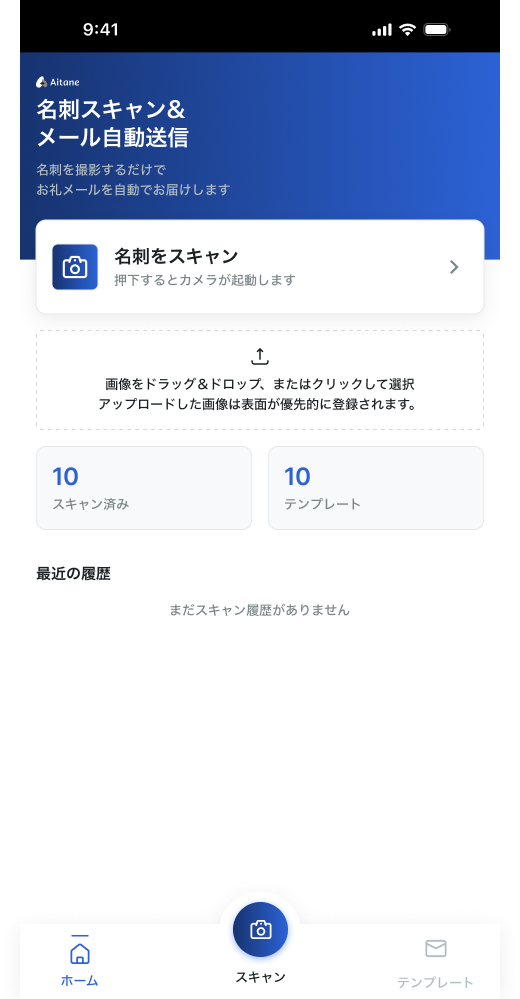
Capture
There are three ways in.
| Method | Use |
|---|---|
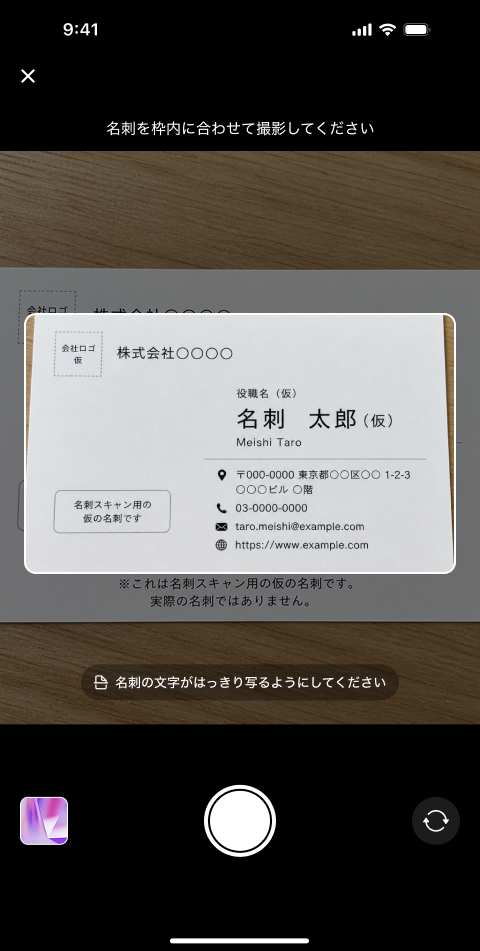
| Take a photo | Opens the camera on the spot |
| Choose from gallery | Use a photo you already took |
| Choose a file | Drag & drop works too |
Supported formats
- PDF — OCR runs server-side
- HEIC — converted to JPEG server-side after upload
You can hand over the iPhone's native format (HEIC) as-is — no conversion needed.
Review and register
When OCR finishes, the extracted content is shown. Check the company name, person's name, and email address.
- If the read is poor, Retake or Rescan
- To fix the content, Edit
- If it looks right, Register
OCR can misread. Email addresses especially — register one wrong and the thank-you email never arrives. Check before registering.
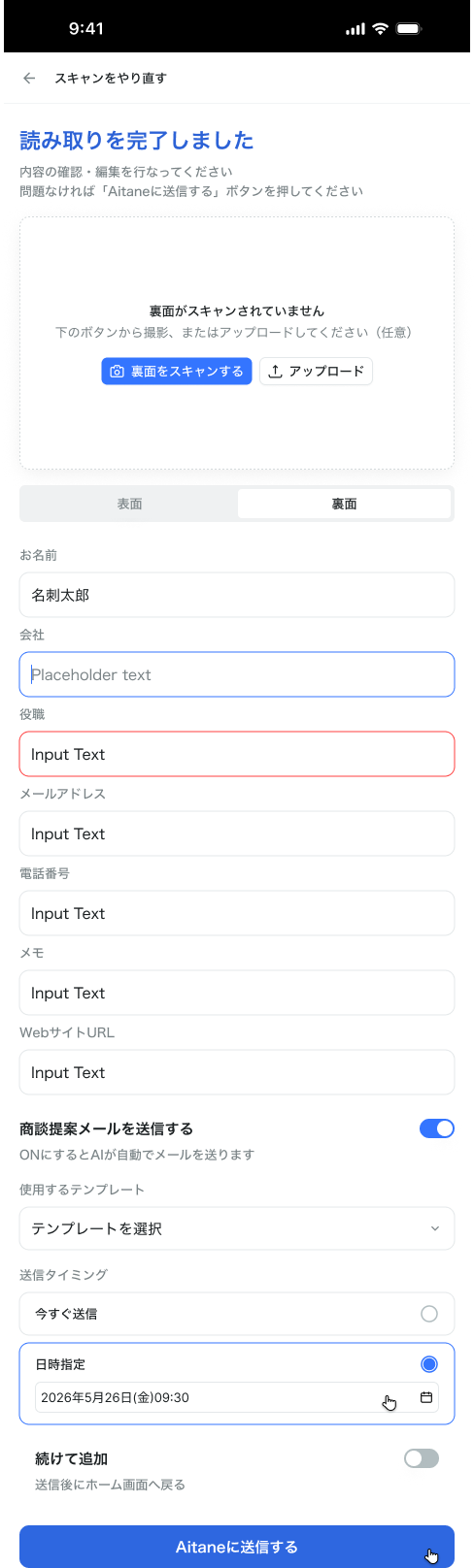
Turn on Send a meeting proposal email and the AI sends a thank-you email as soon as you register. Pick a template, then choose Send now or Schedule. When scanning cards back-to-back, turn on Keep adding to capture the next one without returning to the home screen.
Cards with a back side can be read in the same pass.
Send a thank-you email
You can send a thank-you email at registration time. The wording is managed with email templates.
- Create as many templates as you like and set a default
- Keeping one per occasion — trade shows, visits — makes day-to-day use easier
Manage them under Email template management.
Create and edit email templates
- Open the Email templates tab at the top of the screen.
- Press the + New template button to open the new-template form.
- Enter the subject and body, then press Save. A template cannot be saved with an empty body.
You can embed placeholders in the subject and body. They are replaced with each recipient's values when the email is sent. The available placeholders are shown at the top of the form.
| Placeholder | Replaced with |
|---|---|
| `{{name}}` | The recipient's name |
| `{{company}}` | The recipient's company |
| `{{sender_name}}` | Your name as the sender |
Saved templates are listed under Saved templates. Use Edit to change one and Delete to remove it.
Check your history
Scanned cards remain in Recent history. The scan count and template count are also displayed.
Cards whose name couldn't be read appear as "(card with no name captured)". Edit them later to fill in the gaps.
Limits by plan
| Plan | Scans per month |
|---|---|
| Free | Not available |
| Standard | 100 |
| Business | Effectively unlimited |
| Enterprise | Effectively unlimited |
Card scanning is not available on the Free plan. It requires Standard or above.