Using saved views
Saving combinations of filters and display settings for later
Updated 2026.08.13
This page covers storing a list's filters and display settings as a saved view.
They work on every list — deals, companies, contacts, tasks, notes, and more.
Save one
- On a list, set your filters, sorting, and visible columns.
- Run Save current view.
- Give it a name (e.g. "My deals this month").
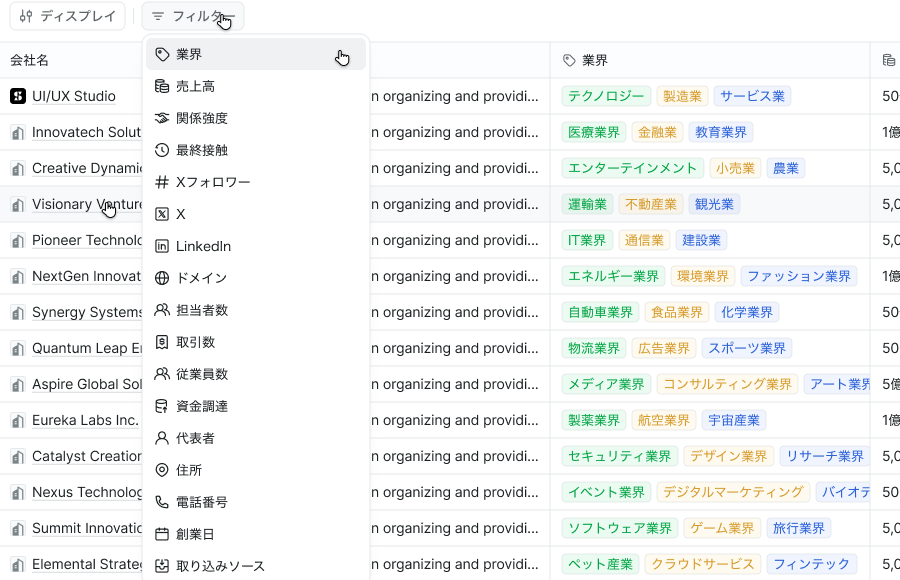
Filter from Filter at the top — industry, revenue, relationship strength, last contact, contact count, and pretty much anything that exists as a column.
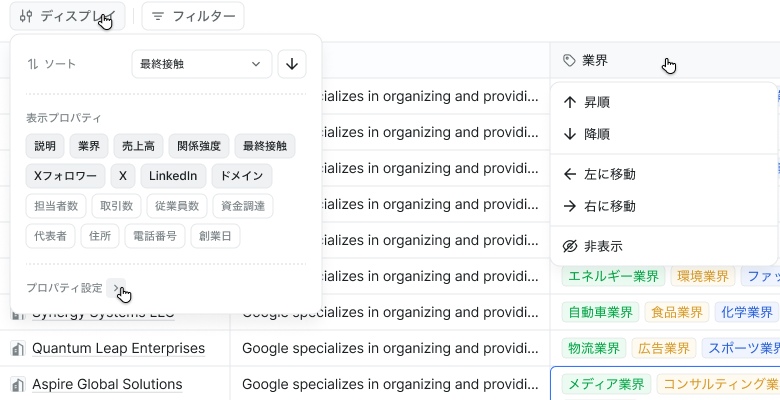
Sorting and visible columns live under Display. Column headers also offer ascending/descending, left/right moves, and hiding.
Saved views are recalled from the list's Saved views. The default is "All".
Manage them
Saved views can be renamed and deleted.
Deletion cannot be undone. The confirmation dialog says as much.
Views worth saving
If you keep re-setting the same conditions, that's a view worth saving.
- Deals to follow this week — in progress with a close date coming up
- My open tasks — assigned to me, status anything but done
- Low-touch customers — companies with a weak relationship score
For the third, add the relationship score as a column and filter on it to regularly surface neglected customers.
Change the visible columns
Column settings picks which columns the list shows. If you've added custom properties to deals, those can be shown as columns too.