Call the Aitane bot during a Google Meet
Use the Chrome extension to call the Aitane bot into an active Google Meet and start recording, transcription, and AI meeting minutes
Updated 2026.08.24
You can call the Aitane bot into a Google Meet even after the meeting has started. Recording and transcription begin when the bot joins, and the recording, transcript, and AI-generated meeting minutes are available in Aitane after the meeting.
Current availability: Calling the bot during a meeting from the Chrome extension currently supports Google Meet opened in desktop Google Chrome only.
Before you begin
- You can use your Aitane account
- You are in a Google Meet opened in desktop Google Chrome
- A host or participant can admit the Aitane bot
- The Aitane bot is not participating in another meeting at the same time
The Aitane bot appears as a meeting participant. Tell the participants that the meeting will be recorded and obtain any required consent before you start.
1. Install the Aitane Chrome extension
- Open Aitane in the Chrome Web Store.
- Select Add to Chrome.
- Confirm by selecting Add extension.
If the Aitane icon is not visible in the toolbar, open Chrome's Extensions menu and pin Aitane.
2. Sign in to Aitane
- Select the Aitane icon in the Chrome toolbar.
- Select Sign in to Aitane.
- Sign in with your usual Aitane account, then return to Google Meet.
When you are signed in, the extension displays Call now for the meeting.
3. Select “Call now” in Google Meet
- Join Google Meet in the Chrome profile where you installed the extension.
- Select the Aitane button at the bottom right of the Google Meet screen to open the panel.
- Select Call now.
You can use this if recording was not configured before the meeting or if you decide to keep a record partway through the conversation.
4. Admit the Aitane bot
After you select Call now, the Aitane bot sends a request to join the Google Meet within three minutes.
If Google Meet asks for admission, a host or another participant with permission must admit the Aitane bot. The call is complete when Aitane appears on the meeting screen or participant list.
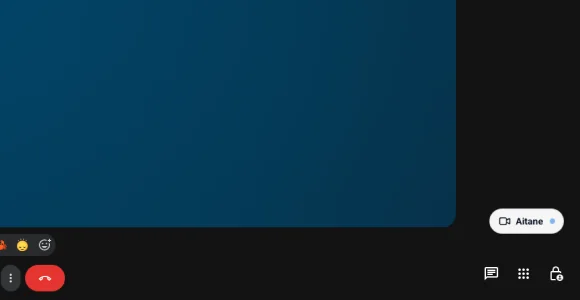
Within three minutes refers to when the join request arrives. When admission is required, recording and transcription do not start until someone admits the bot.
What you can review after the meeting
After recording ends and processing completes, the Aitane meeting details include:
- The meeting recording
- A transcript of the conversation
- AI-generated meeting minutes
If the Google Meet was already registered in Aitane, the results are saved to the original meeting. If you call the bot partway through a meeting, anything discussed before the bot joins is not recorded.
Current limitations
- Manual calling from the Chrome extension currently supports Google Meet only
- The Aitane bot cannot participate in two meetings at the same time
- Only one Aitane bot from the same workspace joins a given meeting
- When admission is required, recording and transcription do not start until the bot is admitted
To call the bot into a different meeting, end the meeting it is attending and wait until the Aitane bot has left before selecting Call now in the next meeting.
If the Aitane bot does not join
Check these items in order:
- You are signed in through the Aitane Chrome extension
- The Google Meet is open in desktop Google Chrome
- Three minutes have passed since you selected Call now
- Someone has admitted the bot in Google Meet
- The Aitane bot is not participating in another meeting at the same time
If the Aitane panel does not appear immediately after installation, reload the Google Meet page and try again.
Frequently asked questions
Can I call the bot after the meeting has started?
Yes. Select Call now while the meeting is in progress. Only the conversation after the Aitane bot joins is recorded and transcribed.
Can I use this with Zoom or Microsoft Teams?
No. Calling the bot during a meeting from the Chrome extension currently supports Google Meet only. See Meeting bot settings for general bot and auto-join settings.
Where can I find the results after recording stops?
Open the meeting details in Aitane to review the recording, transcript, and AI-generated meeting minutes. See Recording and transcribing meetings.
If you still need help
Contact us with the meeting name, the time the problem occurred, and the status or error shown on screen. You do not need to send the conversation or other confidential information.