Managing deals and pipelines
Creating deals, filtering the list, CSV import, and custom properties
Updated 2026.08.24
This page covers managing your deals with Deals in the left navigation.
Deal statuses
Deal statuses are managed in two groups.
| Group | Meaning |
|---|---|
| In progress | The deal is moving (first contact through negotiation). Stages here can be added and edited |
| Completed | Won / Lost. These stages can only be reordered, not added or edited |
The stages within them are configurable per workspace. The defaults are 初回接触 (First contact) → ヒアリング (Discovery) → 提案 (Proposal) → 検討中 (Under review) → 条件調整 (Negotiation) → 受注 (Won) / 失注 (Lost), and you can reshape them around your own sales process. See Configuring deal stages.
Create a deal
Start from New. You can set:
| Field | Contents |
|---|---|
| Deal name | The deal's name |
| Deal amount | Expected value |
| Stage | Current progress |
| Company / contact | The linked customer |
| Close date | Expected completion date |
You can also create a deal from a meeting. Using Register deal on the meeting detail screen creates it already linked to that meeting.
Getting the most from the list
Switch between table and board
The list can be shown as a table or a board — switch via Display at the top.
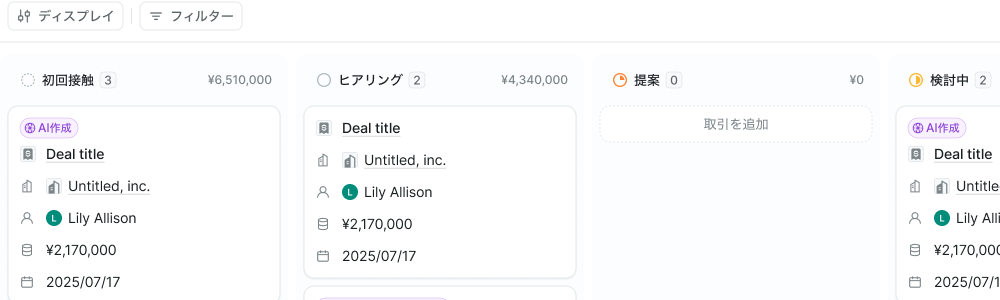
The board arranges columns per stage, with each column header showing the count and total amount. Drag a card to change its stage.
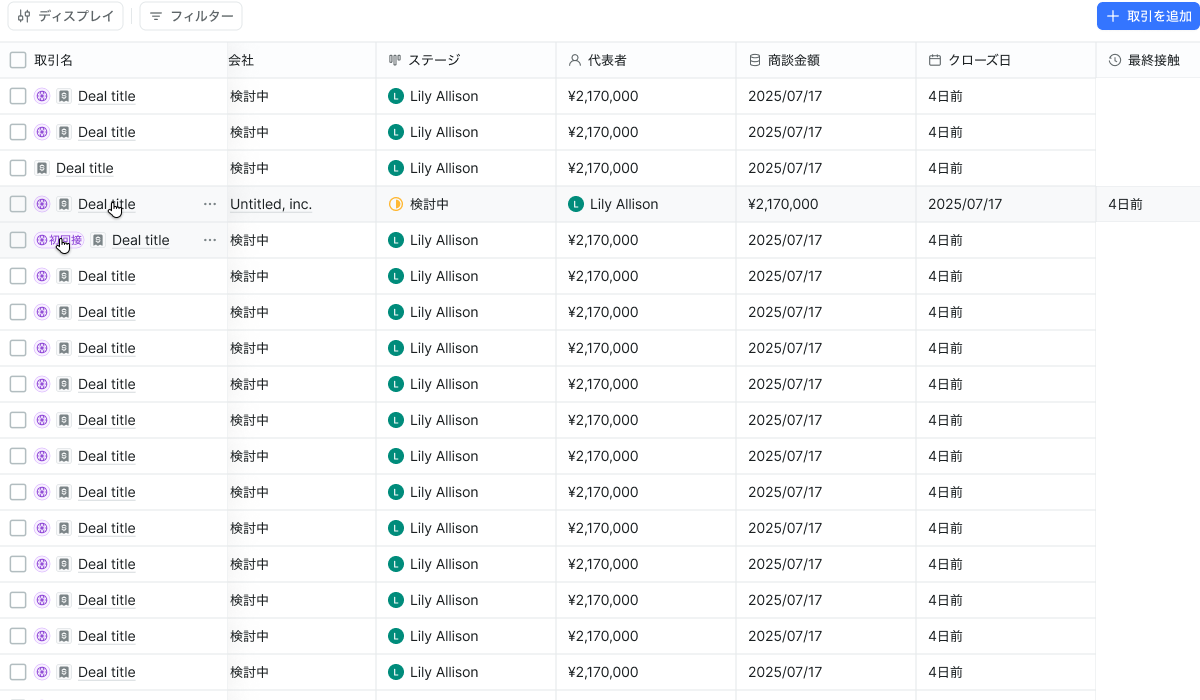
A comfortable split: the board for day-to-day updates, the table when cross-checking amounts and dates.
Sorting and columns
Sort by stage, updated date, created date, deal amount, or title. Change the visible columns via column settings.
Saved views
A combination of filters and display settings can be stored as a saved view. Name one something like "My deals this month" and you'll never re-configure it.
See Using saved views.
Bulk delete
Select several deals and delete them together. There's a cap on how many you can select at once; beyond it, selection stops. If only some deletions fail, you're shown the success and failure counts.
Import via CSV
To register existing data in bulk, use Import CSV.
- Upload a CSV with a header row.
- Map the CSV columns to deal fields. Deal name is required (and company too, if you've made it required).
- Check the preview and import.
There's an option to auto-create companies that don't exist yet — you can import without preparing the company master first.
Unmapped columns are not imported. The preview lists them as "columns in the CSV that won't be imported", so check for anything you didn't mean to drop.
Export with Export CSV.
Add custom properties
Fields your company wants to track can be added under Properties. Five types are available: text, number, date, select, and URL.
Added properties can appear as list columns, are editable on the detail screen, and become mapping targets for CSV import.
Deleting a property deletes its existing values with it. Export anything you need before deleting.
The deal detail screen
The detail screen highlights, at a glance:
- Stage, deal amount, close date, representative
- Next meeting and next task
From there you can create related tasks, notes, emails, and meetings on the spot. Participants can also be added from the detail screen.