Sending and tracking email
Composing, AI drafts, scheduled sending, and filtering by status
Updated 2026.08.13
This page covers working with Email in the left navigation. For connection setup, see Connect your accounts.
Filter by status
Email can be filtered by status.
| Filter | What it shows |
|---|---|
| All | Everything |
| Received | Incoming mail |
| Sent | Mail that has been sent |
| Drafts | Mail still being written |
| Scheduled | Mail waiting to be sent |
You can sort newest-first or oldest-first.
Compose an email
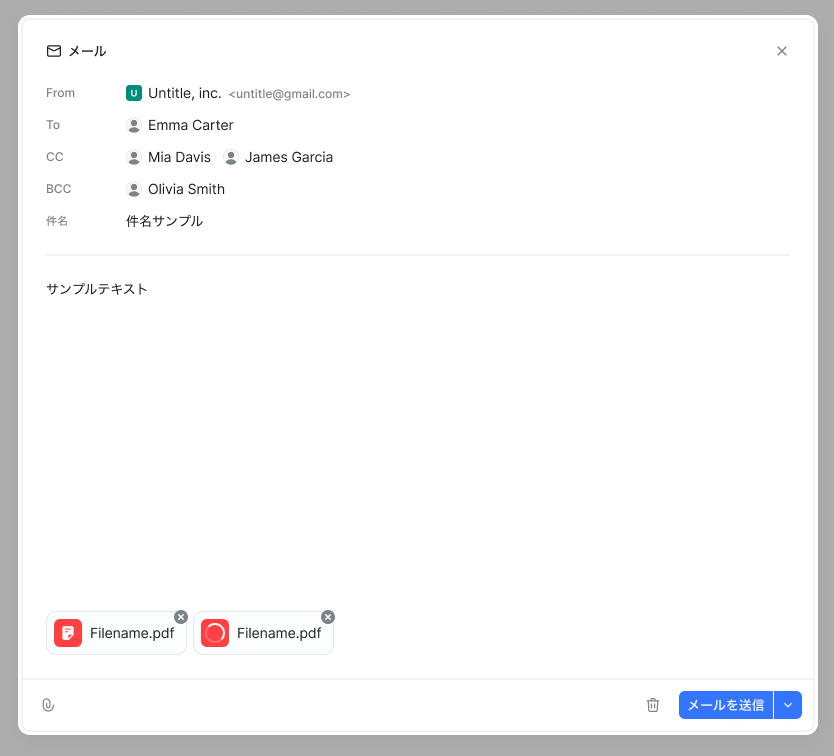
Start from Compose. You can set From, To, CC, BCC, subject, and body. Separate multiple recipients with commas. Attachments are supported.
Let the AI draft it
AI draft generates a body draft based on the context.
Always review the generated text before sending.
Schedule a send
Instead of sending right away, you can pick a time.
- Choose tomorrow at 9:00 / 12:00 / 15:00 / 18:00
- Or set a custom date and time
Handy for writing mail at night and having it land during business hours the next morning. Scheduled mail shows up under the Scheduled filter.
Bulk delete
Select several emails and delete them together. There's a cap on how many you can select at once; beyond it, selection stops. If some deletions fail, you're shown how many succeeded and how many failed.
When you can't send
Once you hit the sending limit, sending stops. The limit is per user per day — Free 50 / Standard 200 / Business 500 — and resets at midnight every day.
See Email sending limits.